
Resource Requirements
Last updated on 2025-12-15 | Edit this page
Estimated time: 10 minutes
Overview
Questions
- How many resources should I request initially?
- What scheduler options exist to request resources?
- How do I know if they are used well?
- How large is my HPC cluster?
Objectives
After completing this episode, participants should be able to …
- Identify the size of their jobs in relation to the HPC system.
- Request a good amount of resources from the scheduler.
- Change the parameters to see how the execution time changes.
When you run a program on your local workstation or laptop, you typically don’t plan out the usage of computing resources like memory or core-hours. Your applications simply take as much as they need and if your computer runs out of resources, you can just a few. However, unless you are very rich, you probably don’t have a dedicated HPC cluster just to yourself and instead you have to share one with your colleagues. In such a scenario greedily consuming as many resources as possible is very impolite, so we need to restrain ourselves and carefully allocate just as many resources as needed. These resource constraints are then enforced by the cluster’s scheduling system so that you cannot accidentally use more resources than you think.
Getting a feel for the size of your cluster
To start with your resource planning, it is always a good idea to first get a feeling for the size of the cluster available to you. For example, if your cluster has tens of thousands of CPU cores and you use only 10 of them, you are far away from what would be considered excessive usage of resources. However, if your calculation utilizes GPUs and your cluster has only a handful of them, you should really make sure to use only the minimum amount necessary to get your work done.
Let’s start by getting an overview of the partitions of your cluster:
Here is a (simplified) example output for the command above:
PARTITION           NODES               CPUS                MEMORY              GRES                TIMELIMIT
normal              223                 36                  95000+              (null)              1-00:00:00
long                90                  36                  192000              (null)              7-00:00:00
express             6                   36                  95000+              (null)              2:00:00
zen4                46                  192                 763758+             (null)              2-00:00:00
gpuexpress          1                   32                  240000              gpu:rtx2080:7       12:00:00
gpu4090             8                   32                  360448              gpu:rtx4090:6       7-00:00:00
gpuh200             4                   128                 1547843             gpu:h200:8          7-00:00:00
In the output, we see the name of each partition, the number of nodes in this partition, the number of CPU cores per node, the amount of memory per node (in Megabytes (or Mebibytes?)), the number of generic resources (typically GPUs) per node and finally the maximum amount of time any job is allowed to take.
Compare the resources available in the different partitions of your local cluster. Can you draw conclusions on what the purpose of each partition is based on the resources it contains?
For our example output above we can make some educated guesses on what the partitions are supposed to be used for:
- The
normalpartition has a (relatively) small amount of memory and limits jobs to at most one day, but has by far the most nodes. This partition is probably designed for small- to medium-sized jobs. Since there are noGRESin this partition, only CPU computations can be performed here. Also, as the number of cores per node is (relatively) small, this partition only allowd multithreading up to 36 threads and requires MPI for a higher degree of parallelism. - The
longpartition has double the memory compared to thenormalpartition, but less than half the number of nodes. It also allows for much longer running jobs. This partition is likely intended for jobs that are too big for thenormalpartition. -
expressis a very small partition with a similar configuration tonormal, but a very short time limit of only 2 hours. The purpose of this partition is likely testing and very short running jobs like software compilation. - Unlike the former partitions,
zen4has a lot more cores and memory per node. The intent of this partition is probably to run jobs using large-scale multithreading. The name of the partitions implies a certain CPU generation (AMD Zen 4), which appears to be newer than the CPU model used in thenormal,longandexpresspartitions (typically core counts increase in newer CPU generations). -
gpuexpressis the first partition that features GPU resources. However, with only a single node and a maximum job duration of 12 hours, this partition seems to be intended again for testing purposes rather than large-scale computations. This also matches the relatively old GPU model. - In contrast,
gpu4090has more nodes and a much longer walltime of seven days and is thus suitable for actual HPC workloads. Given the low number of CPU cores, this partition is intended for GPU workloads only. More details can be gleamed from the GPU model used in this partition (RTX 4090). This GPU type is typically used for Workloads using single-precision floating point calculations. - Finally, the
gpuh200partition combines a large number of very powerful H200 GPUs with a high core count and a very large amount of memory. This partition seems to be intended for the heaviest workloads that can make use of both CPU and GPU resources. The drawback is the low number of nodes in this partition.
This discussion highly depends on the management philosophy of the cluster available to the learners. Some examples:
- A partition with a high number of cores large amounts of memory per node is probably intended for SMP calculations.
- A partition with a lot of nodes that each have only a (relatively) small number of cores and memory is probably intended for MPI calculations.
- A partition with powerful GPUs, but only a small amount of CPU cores is likely intended for jobs where the majority of the work is offloaded to the GPUs.
- A partition with less powerful GPUs but more CPU cores and memory is likely intended for hybrid workloads.
To get a point of reference, you can also compare the total number of cores in the entire cluster to the number of CPU cores on the login node or on your local machine.
BASH
lscpu | grep "CPU(s):"
# If lscpu is not available on your machine, you can also use this command
cat /proc/cpuinfo | grep "core id" | wc -lAs you can see, your cluster likely has multiple orders of magnitude more cores in total than the login node or your local machine. To see the amount of memory on the machine you are logged into you can use
Again, the total memory of the cluster is going to be much, much larger than the memory of any individual machine.
All of these cores and all of that memory are shared between you and all the other users of your cluster. To get a feeling for the amount of resources per user, let’s try to get an estimate for how many users there are by counting the number of home directories.
On some clusters, home directories are not placed directly in
/home, but are split up into subdirectories first (e.g., by
first letter of the username like /home/s/someuser). In
this case, you have to use -maxdepth 2 -mindepth 2 to count
the contents of these subdirectories. If your cluster does not use
/home for the users’ home directories, you might have to
use a different path (check dirname "$HOME" for a clue).
Also, this command only gives an upper limit to the number of real
cluster users as there might be home directories for service users as
well.
By dividing the total number of cores / the total memory by the amount of users, you get an estimate of how many resources each user has available in a perfectly fair world.
Does this mean you can never use more than this amount of resources?
The learners should realize that the per-user average they calculate here is very synthetic:
- Many users do not use their full share of resources, which leaves room for others to use more.
- The average we calculate is only an average over long periods of time. Short term you can usually use much more.
- Not all users are equal. For example, if some research groups have contributed to the funding of the cluster, they should also get more resources than those who did not.
- The world is not perfectly fair. Especially on larger clusters, HPC resources have to be requested via project proposals. Those who write more / better proposals can use more resources.
Now that you have an idea of how big your cluster is, you can start to make informed decisions on how many resources are reasonable to ask for.
Challenge
sinfo can show a lot more information on the nodes and
partitions of your cluster. Check out the documentation
and experiment with additional output options. Try to find a single
command that will shows for each command the number of allocated and
idle nodes and CPU cores.
BASH
$ sinfo -O Partition,CPUsState,NodeAIOT
PARTITION           CPUS(A/I/O/T)       NODES(A/I/O/T)
normal*             6336/720/972/8028   196/0/27/223
long                2205/351/684/3240   71/0/19/90
express             44/172/0/216        3/3/0/6
zen4                7532/1108/192/8832  44/1/1/46
gpuexpress          0/32/0/32           0/1/0/1
gpu4090             177/35/44/256       7/0/1/8
gpuh200             90/166/256/512      2/0/2/4
Sizing your jobs
The resources required by your jobs primarily depend on the application you want to run and are thus very specific to your particular HPC use case. While it is tempting to just wildly overestimate the resource requirements of your application to make sure it cannot possibly run out, this is not a good strategy. Not only would you have to face the wrath of your cluster administrators (and the other users!) for being inefficient, but you would also be punished by the scheduler itself: In most cluster configurations, your scheduling priority decreases faster if you request more resources and larger jobs often need to wait longer until a suitable slot becomes free. Thus, if you want to get your calculations done faster, you should request just enough resources for your application to work.
Finding this amount of resources is often a matter of trial and error
as many applications do not have precisely predictable resource
requirements. Let’s try this for our snowman renderer. Put the following
in a file named snowman.job:
BASH
#!/bin/bash
#SBATCH --nodes=1
#SBATCH --partition=<put your partition here>
#SBATCH --ntasks=4
#SBATCH --cpus-per-task=1
#SBATCH --mem=1G
#SBATCH --time=00:01:00
#SBATCH --output=snowman-stdout.log
#SBATCH --job-name=snowman

# Always a good idea to purge modules first to start with a clean module environment
module purge
# <put the module load commands for your cluster here>

# Start the raytracer
mpirun -n 4 ./SnowmanRaytracer/build/raytracer -width=1024 -height=1024 -spp=256 -threads=1 -alloc_mode=3 -png=snowman.png
The #SBATCH directives assign our job the following
resources (line-by-line):
- 1 node…
- … from the partition
<put your partition here> - 4 MPI tasks…
- … each of which uses one CPU core (so 4 cores in total)
- 1 GB of memory
- A timelimit of 1 minute
The last two #SBATCH directives specifiy that we want
the output of our job to be captures in the file
snowman-stdout.log and that the job should appear under the
name snowman.
The --mem directive is somewhat unfortunately named as
it does not define the total amount of memory of your job, but the total
amount of memory per node. Here, this distinction does not
matter as we only use one node, but you should keep in mind that
changing the number of nodes often implies that you need to adapt the
--mem value as well. Alternatively, you can also use the
--mem-per-cpu directive such that the memory allocation
automatically scales with the number of cores. However, even in this
case you need to verify that your memory consumption actually scales
linearly with the number of cores for your application!
To test if our estimate works, you have to submit the job to the scheduler:
This command will also print the ID of the job, so we can observe what is happening with it. Wait a bit and have a look at how your job is doing:
After a while, you will see that the status of your job is given as
TIMEOUT.
You might wonder what the -X flag does in the the
sacct call above. This option instructs Slurm to not output
information on the “job steps” associated with your job. Since we don’t
care about these right now, we set this flag to make the output more
concise.
Check the file snowman-stdout.log as well. Near the
bottom you will see a line like this:
slurmstepd: error: *** JOB 1234567 ON somenode CANCELLED AT 2025-04-01T13:37:00 DUE TO TIME LIMIT ***Evidently our job was aborted because it did not finish within the time limit of one minute that we set above. Let’s try giving our job a time limit of 10 minutes instead.
This time the job should succeed and show a status of “COMPLETED” in
sacct. We can check the resources actually needed by our
job with the help of seff:
The output of seff contains many useful bits of
information for sizing our job. In particular, let’s look at these
lines:
[...]
CPU Utilized: 00:21:34
CPU Efficiency: 98.93% of 00:21:48 core-walltime
Job Wall-clock time: 00:05:27
Memory Utilized: 367.28 MB
Memory Efficiency: 35.87% of 1.00 GBThe exact numbers here depend a lot on the hardware and software of your local cluster.
The Job Wall-clock time is the time our job took. As we
can see, our job takes much longer than one minute to complete which is
why our first attempt with a time limit of one minute has failed.
The CPU Utilized line shows us how much CPU time our job
has used. This is calculated by determining the busy time for each core
and then summing these times for all cores. In an ideal world, the CPU
cores should be busy for the entire time of our job, so the CPU time
should be equal to the time the job took times the number of CPU cores.
The ratio between the real CPU time and the ideal CPU time is shown in
the CPU Efficiency line.
Finally, Memory utilized line shows the peak memory
consumption that your job had at any point during its runtime, while
Memory Efficiency is the ratio between this peak value and
the requested amount of memory for the allocation. As we will see later,
this value has to be taken with a grain of salt.
Starting from the set of parameters that successfully run our
program, we can now try to reduce the amout of requested resources. As
is good scientific practice, we should only vary one parameter at a time
and observe the result. Let’s start by reducing the time limit. There is
often a bit of jitter in the time needed to run a job since not all
nodes are perfectly identical, so you should add a safety margin of 10
to 20 percent (completely arbitrary choice of
numbers here; does everyone agree on the order of magnitude?)
According to the time reported by seff, seven minutes
should therefore be a good time limit. If your cluster is faster, you
might reduce this even further.
As you can see, your job will still complete successfully.
For the next section, the exact memory requirements depend on the cluster configuration (e.g., the MPI backends used). You might have to adapt these numbers for your local cluster to see the out-of-memory behavior.
Next, we can optimize our memory allocation. According to SLURM, we used 367.28 MB of memory in our last run, so let’s set the memory limit to 500 MB.
After submitting the job with the lowered memory allocation
everything seems fine for a while. But then, right at the end of the
computation, our job will crash. Checking the job status with
sacct will reveal that the job status is
OUT_OF_MEMORY meaning that our job exceeded its memory
limit and was terminated by the scheduler.
This behavior seems contradictory at first: SLURM reported previously that our job only used around 367 MB of memory at most, which is well below the 500 MB limit we set. The explanation for this discrepancy lies in the fact that SLURM measures the peak memory consumption of jobs by polling, i.e., by periodically sampling how much memory the job currently uses. Unfortunately, if the program has spikes in memory consumption that are small enough to fit between two samples, SLURM will miss them and report an incorrect peak memory value. Spikes in memory usage are quite common, for example if your application uses short-lived subprocesses. Most annoyingly, many programs allocate a large chunk of memory right at the end of the computation to write out the results. In the case of the snowman raytracer, we encode the raw pixel data into a PNG at the end, which means we temporarily keep both the raw image and the PNG data in memory.
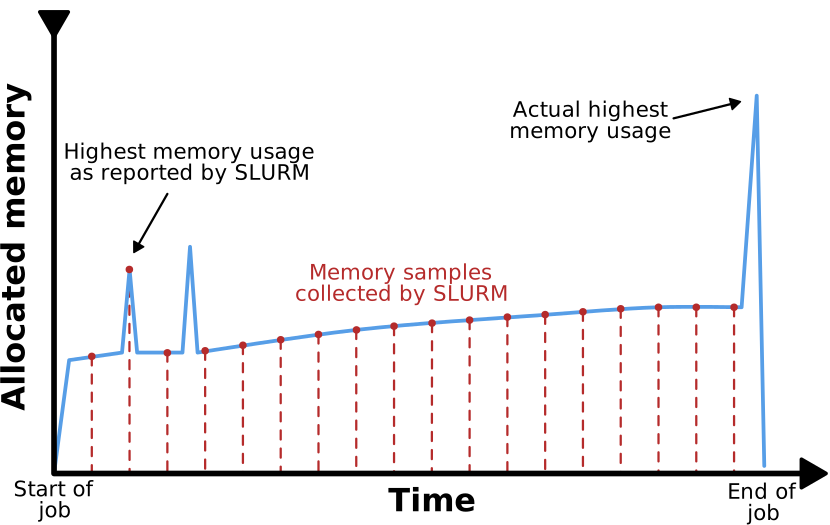
SLURM determines memory consuption by polling, i.e.,
periodically checking on the memory consumption of your job. If you job
has a memory allocation profile with short spikes in memory usage, the
value reported by seff can be incorrect. In particular, if
the job gets cancelled due to memory exhaustion, you should not rely on
the value reported by seff as it is likely significantly
too low.
So how big is the peak memory consumption of our process really? Luckily, the Linux kernel keeps track of this for us, if SLURM is configured to use the so-called “cgroups v2” mechanism to enforce resource limits (which many HPC systems are). Let’s use this system to find out how much memory the raytracer actually needs. First, we set the memory limit back to 1 GB, i.e., to a configuration that is known to work.
Next, add these lines at the end of your job script:
BASH
echo -n "Total amount of memory used (in bytes): "
cat /sys/fs/cgroup/$(cat /proc/self/cgroup | awk -F ':' '{print $3}')/memory.peakLet’s break down what these lines do:
- The first line prints out a nice label for our peak memory output.
We use
-nto omit the usual newline thatechoadds at the end of its output. - The second line outputs the contents of a file (
cat). The path of this file starts with/sys/fs/cgroup, which is a location where the Linux kernel exports all the cgroups v2 information as files. - For the next part of the path we need the so-called “cgroup path” of
our job. To find out this path, we can use the
/proc/self/cgroupfile, which contains this path as the third entry of a colon-separated list. Therefore, we read the contents of this file (cat) and extract the third entry of the colon separated list (awk -F ':' '{print $3}'). Since we do this in$(...), Bash will place the output of these commands (i.e., the cgroup path) at this point. - The final part of the path is the information we actually want from
the cgroup. In out case, we are interested in
memory.peak, which contains the peak memory consumption of the cgroup.
When you submit your job and look at the output once it finishes, you will find a line like this:
[...]
Total amount of memory used (in bytes): 579346432
[...]
So even though SLURM reported our job to only use 367.28 MB of memory, we actually used nearly 600 MB! With this measurement we can make an informed decision on how to set the memory limit for our job:
Run your job again with this limit to verify that it completes successfully.
At this point you might want to point out to your audience that for certain applications it can be disastrous for performance to set the memory constraint too tightly. The reason is that the memory limit enforced by Slurm does not only affect the resident set size of all the processes in the job allocation, but also the memory used for caching (e.g., file pages). If the allocation runs out of memory for the cache, it will have to evict memory pages to disk, which can cause I/O operations and new memory allocations to block for longer than usual. If the application makes heavy use of this cache (e.g., repeated read and/or write operations on the same file) and the memory pressure in the allocation is high, you can even run into a cache thrashing situation, where the job spends the majority of its time swapping data in and out of system memory and thus slows down to a crawl.
So far we have tuned the time and memory limits of our job. Now let
us have a look at the CPU core limit. This limit works slightly
differently than the ones we looked at so far in the sense that your job
is not getting terminated if you try to use more cores than you have
allocated. Instead, the scheduler exploits the fact that multitasking
operating systems can switch out the process a given CPU core is working
on. If you have more active processes in your job than you have CPU
cores (i.e., CPU oversubscription), the operating system will
simply switch processes in and out while trying to ensure that each
process gets an equal amount of CPU time. This happens very fast, so you
can’t see the switching directly, but tools like htop will
show your processes running at less than 100% CPU utilization. Below you
can see a situation of four processes running on three CPU cores, which
results in each process running only 75% of the time.

CPU oversubscription can even be harmful to performance as all the switching between processes by the operating system can cost a non-trivial amount of CPU time itself.
Let’s try reducing the number of cores we allocate by reducing the number of MPI tasks we request in our job script:
Now we have a mismatch between the number of tasks we request and the
number of tasks we use in mpirun. However, MPI catches our
folly and prevents us from accidentally oversubscribing our CPU cores.
In the output file you see the full explanation
There are not enough slots available in the system to satisfy the 4
slots that were requested by the application:

  ./SnowmanRaytracer/build/raytracer

Either request fewer procs for your application, or make more slots
available for use.

A "slot" is the PRRTE term for an allocatable unit where we can
launch a process.  The number of slots available are defined by the
environment in which PRRTE processes are run:

  1. Hostfile, via "slots=N" clauses (N defaults to number of
     processor cores if not provided)
  2. The --host command line parameter, via a ":N" suffix on the
     hostname (N defaults to 1 if not provided)
  3. Resource manager (e.g., SLURM, PBS/Torque, LSF, etc.)
  4. If none of a hostfile, the --host command line parameter, or an
     RM is present, PRRTE defaults to the number of processor cores

In all the above cases, if you want PRRTE to default to the number
of hardware threads instead of the number of processor cores, use the
--use-hwthread-cpus option.

Alternatively, you can use the --map-by :OVERSUBSCRIBE option to ignore the
number of available slots when deciding the number of processes to
launch.This error message was generated with OpenMPI. Other MPI implementations might produce different messages.
If we actually want to see oversubscription in action, we need to switch from MPI to multithreading. First, let us try without oversubscribing the CPU cores:
BASH
#SBATCH --ntasks=1
#SBATCH --cpus-per-task=4

# [...]

./SnowmanRaytracer/build/raytracer -width=1024 -height=1024 -spp=256 -threads=4 -alloc_mode=3 -png=snowman.png
This works and if we look at the output of seff again we
get a baseline for our multithreaded job
[...]
CPU Utilized: 00:21:32
CPU Efficiency: 99.08% of 00:21:44 core-walltime
Job Wall-clock time: 00:05:26
Memory Utilized: 90.85 MB
Memory Efficiency: 12.11% of 750.00 MBChallenge
Compare our measurements for 4 threads here to the measurements we made for doing the computation with 4 MPI tasks earlier. What metrics are similar and which ones are different? Do you have an explanation for this?
We can see that the CPU utilization time and the walltime are virtually identical to the MPI version of our job, while the memory utilization is much lower. The exact reasons for this will be discussed in the following episodes, but here is the gist of it:
- Our job is strongly compute-bound, i.e., the time our job takes is mostly determined by how fast the CPU can do its calculations. This is why it does not matter much for CPU utilization whether we use MPI or threads as long as both can keep the same number of CPU cores busy.
- MPI typically incurs an overhead in CPU usage and memory due to the need to communicate between the tasks (in comparison, threads can just share a block of memory without communication). In our raytracer, this overhead for CPU usage is negligible (hence the same CPU utilization time metrics), but there is a significant memory overhead.
Now let’s see what happens when we oversubscribe our CPU by doubling the number of threads without increasing the number of allocated cores in our job script:
BASH
./SnowmanRaytracer/build/raytracer -width=1024 -height=1024 -spp=256 -threads=8 -alloc_mode=3 -png=snowman.pngChallenge
If you cluster allows direct access to the compute nodes, try logging into the node your job is running on and watch the CPU utilization live using
(Note: Sometimes htop hides threads to make the process
list easier to read. This option can be changed by pressing F2, using
the arrow keys to navigate to the “Hide userlang process threads”,
toggling with the return key and then applying the change with F10.)
Compare the CPU utilization of the raytracter threads
with different total numbers of threads.
In the top right of htop you can also see a metric
called load average. Simplified, this is the number of
processes / threads that are currently either running or could run if a
CPU core was free. Compare the amount of load you generate with your job
depending on the number of threads.
You can see that the CPU utilization of each raytracer
thread goes down as the number of threads increases. This means, each
process is only active for a fraction of the total compute time as the
operating system switches between threads.
For the load metric, you can see that the load increases linearly with the number of threads regardless if they are actually running or waiting for a CPU core. Load is a fairly common metric to be monitored by cluster administrators, so if you cause excessive load by CPU oversubscription you will probably hear from your local admin.
Despite using twice the amount of threads, we barely see any
difference in the output of seff:
CPU Utilized: 00:21:29
CPU Efficiency: 98.85% of 00:21:44 core-walltime
Job Wall-clock time: 00:05:26
Memory Utilized: 93.32 MB
Memory Efficiency: 12.44% of 750.00 MB
This shows that despite having more threads, the CPU cores are not performing more work. Instead, the operating system periodically rotates the threads running on each allocated core, making sure every thread gets a time slice to make progress.
Let’s see what happens when we increase the thread count to extreme levels:
BASH
./SnowmanRaytracer/build/raytracer -width=1024 -height=1024 -spp=256 -threads=1024 -alloc_mode=3 -png=snowman.pngWith this setting, seff yields
CPU Utilized: 00:26:45
CPU Efficiency: 99.07% of 00:27:00 core-walltime
Job Wall-clock time: 00:06:45
Memory Utilized: 113.29 MB
Memory Efficiency: 15.11% of 750.00 MB
As we can see, our job is actually getting slowed down from all the switching between threads. This means, that for our raytracer application CPU oversubscription is either pointless or actively harmful regarding performance.
If CPU oversubscription is so bad, then why do most operating systems default to this behavior?
In this case we have a CPU bound application, i.e., the work done by the CPU is the limiting factor and thus dividing this work into smaller chunks does not help with performance. However, there are also applications bound by other resources. For these applications it makes sense to assign the CPU core elsewhere while the process is waiting, e.g., on a storage medium. Also, in most systems it is desireable to have more programs running than your computer has CPU cores since often only a few of them are active at the same time.
Multi-node jobs
So far, we have only used a single node for our job. The big advantage of MPI as a parallelism scheme is the fact that not all MPI tasks need to run on the same node. Let’s try this with our Snowman raytracer example:
BASH
#!/bin/bash
#SBATCH --nodes=2
#SBATCH --partition=<put your partition here>
#SBATCH --ntasks=4
#SBATCH --cpus-per-task=1
#SBATCH --mem=700M
#SBATCH --time=00:07:00
#SBATCH --output=snowman-stdout.log
#SBATCH --job-name=snowman

# Always a good idea to purge modules first to start with a clean module environment
module purge
# <put the module load commands for your cluster here>

mpirun -- ./SnowmanRaytracer/build/raytracer -width=1024 -height=1024 -spp=256 -threads=1 -alloc_mode=3 -png=snowman.png

echo -n "Total amount of memory used (in bytes): "
cat /sys/fs/cgroup$(cat /proc/self/cgroup | awk -F ':' '{print $3}')/memory.peak
The important change here compared to the MPI jobs before is the
--nodes=2 directive, which instructs Slurm to distribute
the 4 tasks across exactly two nodes.
You can also leave the decision of how many nodes to use up to Slurm by specifying a minimum and a maximum number of nodes, e.g.,
--nodes=1-3would mean that Slurn can assign your job either one, two or three nodes.
Let’s look at the seff report of our job once again:
[...]
Nodes: 2
Cores per node: 2
CPU Utilized: 00:21:32
CPU Efficiency: 98.78% of 00:21:48 core-walltime
Job Wall-clock time: 00:05:27
Memory Utilized: 280.80 MB
Memory Efficiency: 20.06% of 1.37 GB
We can see that Slurm did indeed split up the job such that each of the two nodes is running two tasks. We can also see that the walltime and CPU time of our job are basically the same as before. Considering the fact that communication between nodes is usually much slower than communication within a node, this result is surprising at first. However, we can find an explanation in the way our raytracer works. Most of the compute time is spent on tracing light rays through the scene for each pixel. Since these light rays are independent from one another, there is no need to communicate between the MPI tasks. Only at the very end, when the final image is assembled from the samples calculated by each task, there is some MPI communication happening. The overall communication overhead is therefore vanishingly small.
How well your program scales as you increase the number of nodes depends strongly on the amount of communication in your program.
We can also look at the memory consumption:
[...]
Total amount of memory used (in bytes): 464834560
[...]
As we can see, there was indeed less memory consumed on the node running our submit script compared to before (470 MB vs 580 MB). However, our method of measuring peak memory consumption does not tell us about the memory consumption of the second node and we have to use slightly more sophisticated tooling to find out how much memory we actually use.
In the course material is a directory
mpi-cgroups-memory-report that can help us out here, but we
need to compile it first:
Make sure you have a working MPI C Compiler (check with
which mpicc). It is part of the same modules that you need
to run the example raytracer application.
The memory reporting tool works by hooking itself into the
MPI_Finalize function that needs to be called at the very
end of every MPI program. Then, it does basically the same thing as we
did in the script before and checks the memory.peak value
from cgroups v2. To apply the hook to a program, you need to add the
path to the mpi-mem-report.so file we just created to the
environment variable LD_PRELOAD:
BASH
LD_PRELOAD=$(pwd)/mpi-cgroups-memory-report/mpi-mem-report.so mpirun -- ./SnowmanRaytracer/build/raytracer -width=1024 -height=1024 -spp=256 -threads=1 -alloc_mode=3 -png=snowman.pngAfter submitting this job and waiting for it to complete, we can check the output log:
[...]
[MPI Memory Reporting Hook]: Node r05n10 has used 464564224 bytes of memory (peak value)
[MPI Memory Reporting Hook]: Node r07n04 has used 151105536 bytes of memory (peak value)
[...]
The memory consumption of the first node matches our previous result, but we can now also see the memory consumption of the second node. Compared to the first node the second node uses much less memory, however in total both nodes use slightly more memory than running all four tasks on a single node (610 MB vs 580 MB). This memory imbalance between the nodes is an interesting observation that we should keep in mind when it comes to estimating how much memory we need per node.
Tips for job submission
To end this lesson, we discuss some tips for choosing resource allocations such that your jobs get scheduled more quickly.
- Many clusters have activated the so-called backfill scheduler option in Slurm. This mechanism tries to squeeze low priority jobs in the gaps between jobs of higher priority (as long as the larger jobs are not delayed by this). In this case, smaller jobs are generally advantageous as they can “skip ahead” in the queue and start early.
- Using
sinfo -t idleyou can specifically search for partitions that have idle nodes. Consider using these partitions for your job if possible as an idle node will typically start your job immediately. - Different partitions might have different billing weights,
i.e., they might use different factors to determine the “cost” of your
calculation, which is subtracted from your compute budget or fairshare
score. You can check these weights using
scontrol show partition <partitionname> | grep TRESBillingWeights. The idea behind different billing weights is to even out the cost of the different resources (i.e., how many hours of memory use correspond to one hour of CPU use) and to ensure that using more expensive hardware carries an appropriate cost for the users. - Typically, it takes longer for a large slot to free up than it takes for several small slots to open. Splitting your job across multiple nodes might not be the most computationally efficient way to run it due to the possible communication overhead, but it can be more efficient in terms of scheduling.
- Slurm produces an estimate on when your job will be started which
you can check with
scontrol show job 35749406 | grep StartTime.
At this point you can present some scheduling strategies specific to your cluster. For the sake of time, you have likely reserved some resources for the course participants such that their jobs start instantly. Now would be a good time to show them the harsh reality of HPC scheduling on a contested partition and demonstrate that a major part of using an HPC cluster is waiting for your jobs to start.
I’m not sure if this is the right section to discuss this…
- Your cluster might seem to have an enormous amout of computing resources, but these resources are a shared good. You should only use as much as you need.
- Resource requests are a promise to the scheduler to not use more
than a specific amount of resources. If you break your promise to the
scheduler and try to use more resources, terrible things will happen.
- Overstepping memory or time allocations will result in your job being terminated.
- Oversubscribing CPU cores will at best do nothing and at worst diminish performance.
- Finding the minimal resource requirements takes a bit of trial and error. Slurm collects a lot of useful metrics to aid you in this.